ori: https://www.cyberbit.com/anti-vm-and-anti-sandbox-explained/
1. Checking CPU Instructions:
The result of the following instructions with specific input can help malware identify virtual environments:
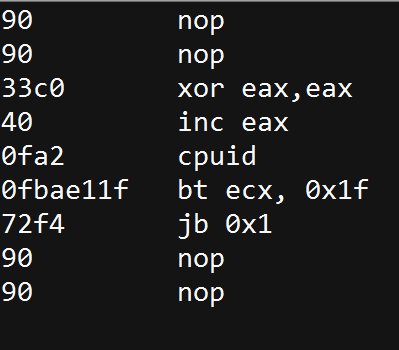
- CPUID: This instruction is executed with EAX=1 as input, the return value describes the processors features. The 31st bit of ECX on a physical machine will be equal to 0. On a guest VM it will equal to 1.
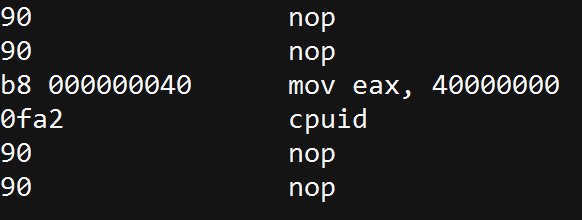
- “Hypervisor brand”: by
calling CPUID with EAX=40000000 as input,1 the malware will get, as the
return value, the virtualization vendor string in EAX, ECX, EDX.
For example:
- Microsoft: “Microsoft HV”
- VMware : “VMwareVMware”
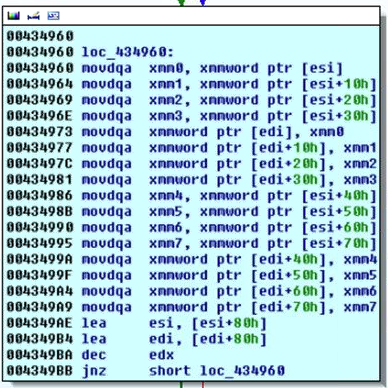
- MMX:
an Intel instruction set, designed for faster processing of graphical
applications. These are usually not supported in Virtual Machines so
their absence may indicate that the malware is running in a VM.
For example:
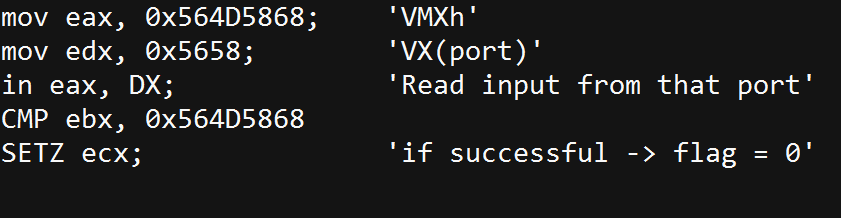
- IN – “VMWare Magic Number”: this
technique is useful for detecting a VMware environment. In VMWare,
communication with the host is done through a specific I/O port. The
code below will execute successfully if running inside a VM. Otherwise
it will fail.
 2. Checking for Known Mac Addresses:
Prefixes
of MAC addresses indicate the network adapter’s vendor. The MAC address
can be retrieved in multiple ways, including the using of WMIC (wmic
-> nic list)
- 00:05:69 (Vmware)
- 00:0C:29 (Vmware)
- 00:1C:14 (Vmware)
- 00:50:56 (Vmware)
- 08:00:27 (VirtualBox)
3. Checking for Registry Keys
The existence of the following registry entries indicates the existence of virtualization software:
- HKLM\SOFTWARE\Vmware Inc.\\\Vmware Tools
- HKEY_LOCAL_MACHINE\HARDWARE\DEVICEMAP\Scsi\Scsi Port 2\Scsi Bus 0\Target Id 0\Logical Unit Id 0\Identifier
- SYSTEM\CurrentControlSet\Enum\SCSI\Disk&Ven_VMware_&Prod_VMware_Virtual_S
- SYSTEM\CurrentControlSet\Control\CriticalDeviceDatabase\root#vmwvmcihostdev
- SYSTEM\CurrentControlSet\Control\VirtualDeviceDrivers
4. Checking for Processes Indicating a VM
Any of the following processes may indicate a virtual environment.
Malware can retrieve this info in multiple ways like: WMIC, Win API and
CMD. WMIC (wmic -> process list), Win API (Process32First,
Process32Next), and Tasklist.exe.
- Vmware
- Vmtoolsd.exe
- Vmwaretrat.exe
- Vmwareuser.exe
- Vmacthlp.exe
- VirtualBox
- vboxservice.exe
- vboxtray.exe
5. Checking for Existence of Files Indicating a VM
When
these files are found to exist in the file system, this may indicate
the existence of virtualization software. These can also be retrieved in
multiple ways like: WMIC, Win API and CMD.
C:\windows\System32\Drivers\Vmmouse.sys
C:\windows\System32\Drivers\vm3dgl.dll
C:\windows\System32\Drivers\vmdum.dll
C:\windows\System32\Drivers\vm3dver.dll
C:\windows\System32\Drivers\vmtray.dll
C:\windows\System32\Drivers\VMToolsHook.dll
C:\windows\System32\Drivers\vmmousever.dll
C:\windows\System32\Drivers\vmhgfs.dll
C:\windows\System32\Drivers\vmGuestLib.dll
C:\windows\System32\Drivers\VmGuestLibJava.dll
C:\windows\System32\Driversvmhgfs.dll
C:\windows\System32\Drivers\VBoxMouse.sys
C:\windows\System32\Drivers\VBoxGuest.sys
C:\windows\System32\Drivers\VBoxSF.sys
C:\windows\System32\Drivers\VBoxVideo.sys
C:\windows\System32\vboxdisp.dll
C:\windows\System32\vboxhook.dll
C:\windows\System32\vboxmrxnp.dll
C:\windows\System32\vboxogl.dll
C:\windows\System32\vboxoglarrayspu.dll
C:\windows\System32\vboxoglcrutil.dll
C:\windows\System32\vboxoglerrorspu.dll
C:\windows\System32\vboxoglfeedbackspu.dll
C:\windows\System32\vboxoglpackspu.dll
C:\windows\System32\vboxoglpassthroughspu.dll
C:\windows\System32\vboxservice.exe
C:\windows\System32\vboxtray.exe
C:\windows\System32\VBoxControl.exe
6. Checking for Running Services
Identifying whether one the following processes is running indicates a virtual environment.
These can also be retrieved in multiple ways WMIC, Win API and CMD
(wmic -> Service list, sc.exe /query)
- VMTools
- Vmhgfs
- VMMEMCTL
- Vmmouse
- Vmrawdsk
- Vmusbmouse
- Vmvss
- Vmscsi
- Vmxnet
- vmx_svga
- Vmware Tools
- Vmware Physical Disk Helper Service


